Upscale photos online with AI and review exact output dimensions. Compare actual 2x results, understand the free 1024px limit, and inspect detail before saving.
A morning worth keepingTry a sample below
Simulated low-quality inputStandard 2× result
Drag the divider or use arrow keys in steps of five percent. Home and End show the full result or original.
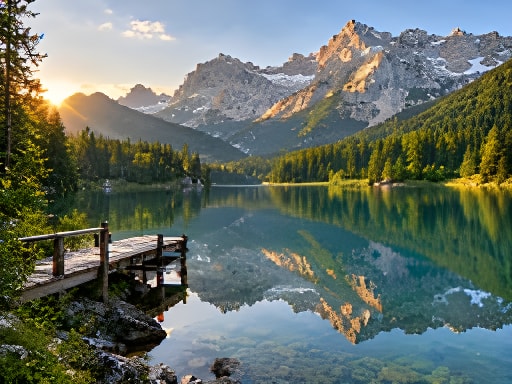
A 256 × 192 image can become 512 × 384 at 2× with EnhanceWizard Standard; actual examples show this change. Width and height double, so pixel count quadruples. Free input and output must each have a longest side of no more than 1,024 pixels. A larger result does not prove recovered detail. Review the displayed dimensions and inspect text, lines and texture before saving.
Enlarging small photographs while staying within the displayed free output estimate.
Comparing landscape, room and illustration edges at equal display size.
When to choose another workflow
Automatic print-ready quality, lossless logo reconstruction or unlimited free 4K output.
Pixel sprites: use the separate local integer nearest-neighbor tool to preserve their grid.
THE PRACTICAL DETAILS
EnhanceWizard at a glance
Free trial
An eligible Free Standard task requires no account or payment card.
Daily allowance
1 accepted image per device and up to 2 per shared IP each UTC day, whichever limit is reached first. The shared service budget also applies.
Image size
Free input and output must each have a longest side of no more than 1,024 pixels.
Formats and watermark
JPG, PNG and WebP. Standard image downloads have no watermark.
Processing and privacy
Your preview stays in the browser until you start. Standard processing uploads the image to private service storage and third-party processing providers; it does not run entirely on your device. Service-owned originals and results are scheduled for deletion within 24 hours; provider retention is separate.
HD processing
Standard HD is enabled. Sign in and review exact output dimensions and credits before processing; service availability is checked when you submit.
Face restoration
Optional face restoration is enabled for the Enhance goal and is off by default. It may alter facial details; compare identity against the source.
An accepted free attempt remains used if processing fails or is cancelled. Unused allowance does not roll over; signing in does not reset it. Processing depends on service availability; your allowance is checked before a task starts. Read the help and limits ↗
Each pair goes from 256 × 192 to 512 × 384 pixels using Standard with face restoration off. Width and height double; the pixel count quadruples. These are individual model results, not 4K outputs or proof of recovered detail.
Simulated low-quality inputStandard result
Drag the divider or use arrow keys in steps of five percent. Home and End show the full result or original.
Landscapes
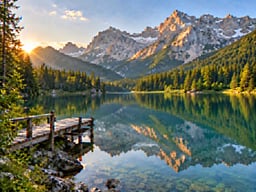
A morning worth keeping
Compare the pier, distant trees and mountain edges at the same display size. More pixels should help presentation without being mistaken for new scene information.
256 × 192 → 512 × 384Standard · 2× · face restoration off
Drag the divider or use arrow keys in steps of five percent. Home and End show the full result or original.
Interiors
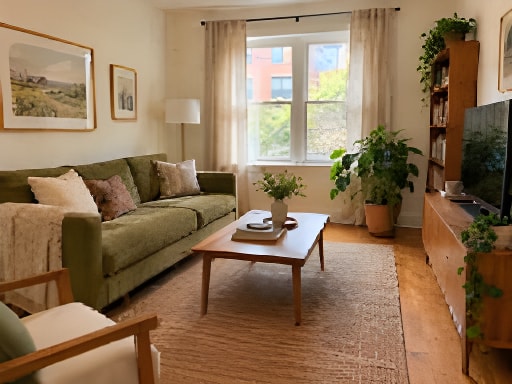
Light, space and straight lines
Check window frames, furniture legs and fabric after enlargement. A larger listing image is useful only if straight lines and room features remain faithful.
256 × 192 → 512 × 384Standard · 2× · face restoration off
Drag the divider or use arrow keys in steps of five percent. Home and End show the full result or original.
Illustrations
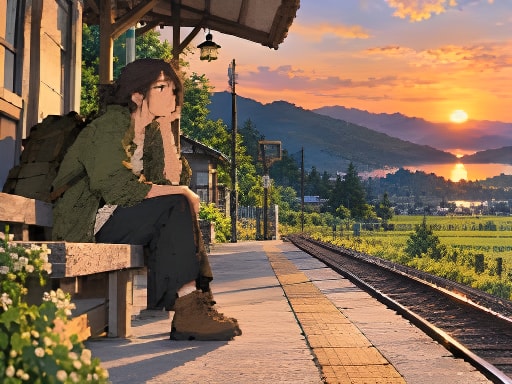
A quiet platform at sunset
Inspect outlines and flat-color boundaries. This is general Standard processing, not a dedicated anime model or a demonstration of lossless pixel-art scaling.
256 × 192 → 512 × 384Standard · 2× · face restoration off
Example originals are AI-generated simulated low-quality inputs, not customer photographs. Comparisons use actual Standard model outputs. Dimensions, scale and settings are shown for each evaluation; results vary by source.
THREE SIMPLE STEPS
How to upscale a photo online
01
Check the destination
Start with the original file and the pixel dimensions your website, listing or print workflow needs. Keep the untouched source.
02
Read the output dimensions
Select Upscale and review the estimated width and height. Free Standard output stays within a 1,024-pixel longest side; HD sizes require credits when available.
03
Compare at equal size
Inspect both versions in the aligned comparison. Look at thin lines, logos and texture before downloading; larger dimensions alone do not make a photo print-ready.
Choose an output size your source can support
Choose an output size your source can support
Input
Requested scale
Output
Availability
256 × 192
2×
512 × 384
Within the Free Standard size boundary; demonstrated above.
512 × 384
2×
1,024 × 768
Within the free input and output size boundary; daily allowance still applies.
1,024 × 768
2×
2,048 × 1,536
Exceeds the free output limit; needs HD when enabled.
1,024 × 768
4×
4,096 × 3,072
Needs HD when enabled; review the output quote and credits first.
A CLOSER LOOK
What to look for in your result.
Upscaling adds pixels so an image can occupy more space. It does not guarantee recovery of detail that the camera never recorded.
Read the dimensions before you start
A 2× enlargement doubles width and height, so the total pixel count becomes four times as large. A 4× enlargement creates sixteen times as many pixels. HD Standard offers 1×, 2× and 4× within the supported pixel limit when enabled. The quote shows the final width, height and cost before you commit.
Compare at a matching scale
The divider aligns the original and output in the same display area. At 100%, the comparison uses the output dimensions as a common coordinate space. This helps distinguish useful detail from the impression caused by looking at one image smaller than the other. Side-by-side views synchronize scrolling.
Choose the right method for the artwork
Photographs, smooth illustrations and pixel art have different needs. Standard may help photographic detail, but can change small text or hard pixel edges. Pixel art uses exact integer scaling and nearest-neighbor sampling; our local pixel art tool preserves the pixel grid rather than inventing fine texture.
GOOD QUESTIONS
Before you begin.
Will a free task always double my image size?
No. Free input and output are limited to a longest side of 1,024 pixels. The output estimate shows the permitted dimensions for your file.
Does a larger image become print-ready automatically?
No. Print quality depends on intended physical size, viewing distance and actual source detail as well as pixel dimensions. Inspect before printing.
Can an upscaler preserve small logos and letters perfectly?
No guarantee is possible. AI can alter fine marks. Use original vector artwork for logos when available and check all important text.