
Drag the divider or use arrow keys in steps of five percent. Home and End show the full result or original.
Portraits
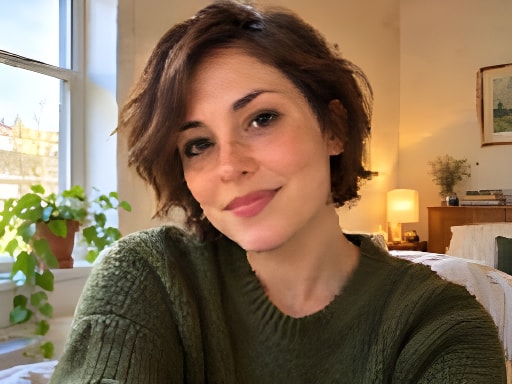
Window-light portrait
Inspect freckles, hair and sweater texture. Natural skin should still look like skin.
Try this sample ↗LOOK LIKE YOURSELF
Try natural Standard enhancement for a dating or social profile photo. Check skin texture and identity, with privacy and size limits explained.
Drag the divider or use arrow keys in steps of five percent. Home and End show the full result or original.
SEE THE SMALL DETAILS
Drag the divider or use arrow keys in steps of five percent. Home and End show the full result or original.
Portraits
Inspect freckles, hair and sweater texture. Natural skin should still look like skin.
Try this sample ↗Example originals are AI-generated simulated low-quality inputs, not customer photographs. Comparisons use actual Standard model outputs. Dimensions, scale and settings are shown for each evaluation; results vary by source.
THREE SIMPLE STEPS
Upload, drop or paste a supported image. Your preview stays local until you start.
Choose your goal and output. Check the dimensions, allowance and price beside the canvas.
Drag the divider, inspect at 100%, and download the version that works for you.
A CLOSER LOOK
A profile photograph works best when it looks like the person someone will meet. Improve clarity carefully and keep lighting, skin texture and facial identity believable.
Start with a recent photo, an unobstructed face and a simple background. Soft window light can make a better starting image than a heavily filtered selfie. Use your camera original rather than a screenshot from another profile. Standard enhancement can improve mild softness; it does not offer a dedicated skin-retouching engine.
Leave optional face restoration off for a first comparison. Examine freckles, the shape of the eyes and mouth, and the transition between hair and background. Keep skin texture instead of aiming for a perfectly smooth surface. If an output changes your features, choose the original or make a gentler edit in another tool.
Check your app's current photo dimensions and crop preview before uploading there. This release has no avatar crop editor or automatic social-size export. EnhanceWizard keeps selected files local until a task starts; processed service copies are scheduled for deletion within 24 hours. That is different from a promise that a processing service never stores a photo.
GOOD QUESTIONS
Standard enhancement is the default. There is no dedicated beauty or skin-texture preset. Optional face restoration, when enabled, is a separate choice that may alter details.
The local preview is not uploaded until you start. Processing uses private service storage, with service copies scheduled for deletion within 24 hours. Your downloaded copies are yours to manage.
Automatic avatar cropping and app-size presets are not currently available. Preview the crop in the destination app before publishing.
FROM THE JOURNAL